If you want to translate a Bubble app website into multiple languages, the hard part is not finding a translation button. The hard part is deciding which parts belong inside Bubble's native language settings, which parts need a translation workflow, and which pages must stay indexable for search.
Bubble is flexible, but a Bubble app is rarely just a static website. It may include landing pages, dashboards, repeating groups, user-generated content, marketplace listings, checkout flows, onboarding screens and transactional messages. A useful multilingual setup has to handle all of that without turning your no-code build into five separate apps.
Translate a Bubble App Website Into Multiple Languages: The Practical Stack
For most Bubble teams, the cleanest approach is a layered stack:
- Use Bubble App Texts for short product UI : buttons, labels, error messages, input placeholders and system messages.
- Use a website translation layer for rendered pages : marketing pages, public app screens, listing cards, onboarding copy and frequently changing text.
- Use manual review for sensitive content : legal copy, payment language, health claims, financial claims and high-value conversion pages.
- Use SEO settings per public page : translated titles, descriptions, slugs and headings where your architecture supports them.
Bubble's official App Texts feature is designed for app strings and messages. It can translate strings into different languages and use the active language to display the right text. It is best for small reusable strings, not long articles, large CMS-style descriptions or public SEO content that changes often.
That distinction matters. If you put every paragraph, property description, course lesson or marketplace listing into App Texts, your content model becomes difficult to maintain. Keep App Texts for interface chrome. Treat public content as content.
What You Should Translate First
Start with the public path that brings users to signup or purchase. A multilingual Bubble project does not need every hidden admin screen on day one.
Translate these first:
- Homepage headline, subhead, CTAs and trust sections
- Pricing page, plan descriptions and FAQ
- Signup, login, onboarding and email confirmation screens
- Marketplace cards, directory listings or product preview pages
- Empty states, validation messages and payment instructions
- Help center articles that answer pre-sale questions
Leave internal admin screens, low-traffic settings pages and experimental flows for later. This keeps the first launch measurable.
For example, a Bubble marketplace may only need English, Spanish and French on the public home, category pages, listing pages and signup flow. The seller dashboard can stay English until there is enough seller demand to justify the work.
Native Bubble App Texts: Where They Fit
Bubble App Texts are useful because they are part of the platform. You can create text IDs, translate them under Settings - Languages, and use them in expressions across text elements, buttons, inputs, tooltips, workflows and conditions.
Use App Texts for:
- Navigation labels such as "Dashboard", "Settings", "Messages"
- Buttons such as "Save", "Cancel", "Continue"
- Validation messages and short error states
- Form placeholders and field labels
- Reusable system messages
Do not use App Texts as your only translation system if your app has lots of dynamic content. Bubble's own docs describe App Texts as static data and recommend them for strings rather than long content. Long content needs an editorial workflow, ownership, review and sometimes SEO-specific metadata.
If your app has user-generated content, you also need a policy. Translating user posts automatically can be helpful, but it can also change meaning. For public UGC, add a clear review step or label machine-translated content.
Adding a Script-Based Translation Layer
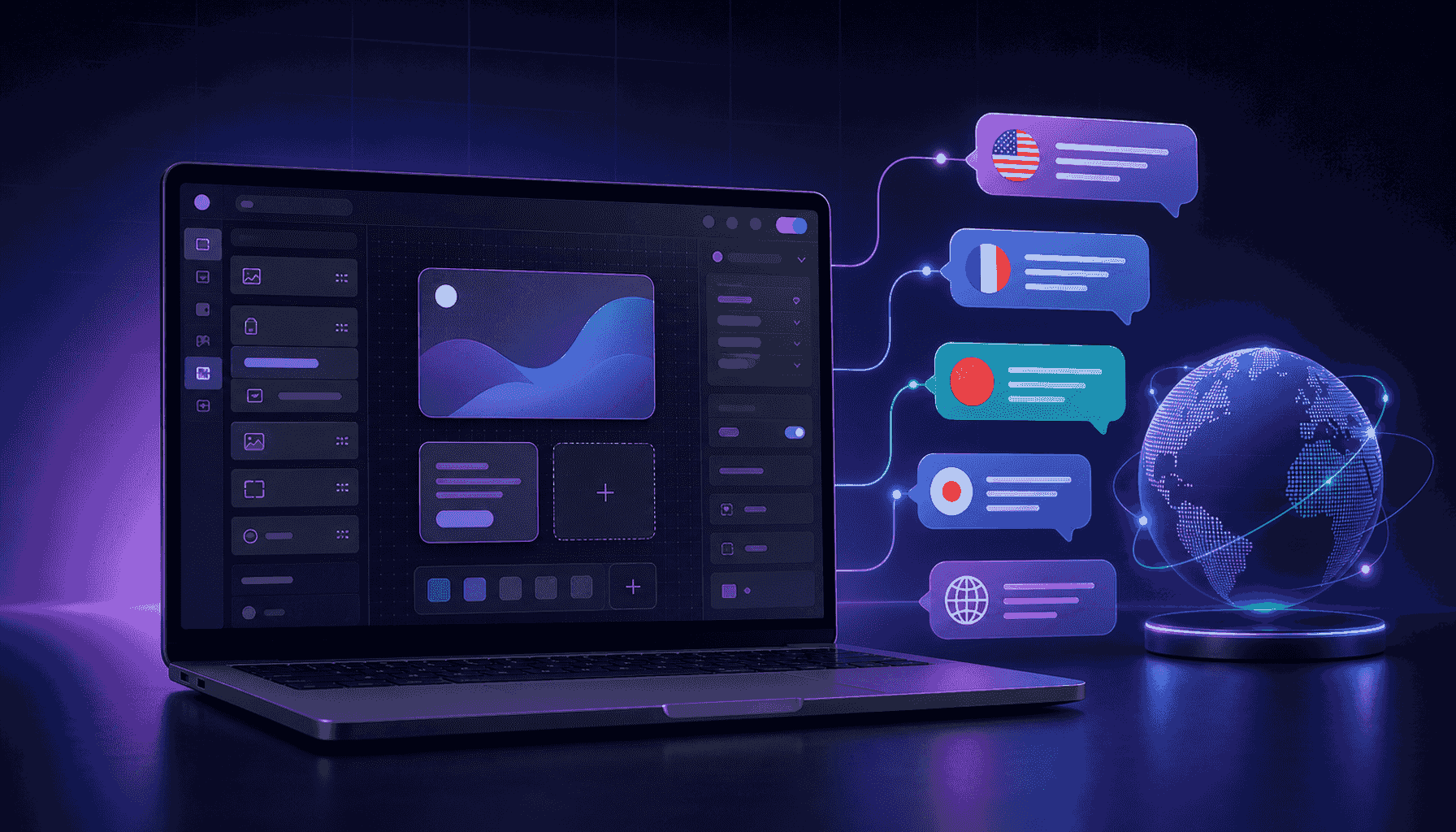
A script-based tool translates what the visitor sees after the Bubble page renders. That makes it useful for pages with repeating groups, conditional content and text coming from the database.
This layer can be installed with one JavaScript snippet:
<script src="https://cdn.jsdelivr.net/gh/Flowcodelab/LingoJs@main/lingo-snippet.obf.js"></script>In Bubble, you can place scripts through app-level or page-level custom code options, or use a reusable HTML element when that better matches your layout. After the script loads, LingoJs can detect visible text, translate it into the languages configured for the project and let your team manage translations in the dashboard at https://lingojs.com/en/dashboard.
This is especially practical for Bubble builds because the app can stay structurally the same. You do not need to duplicate pages, copy workflows or maintain separate apps per language. Your Bubble editor remains the source of the product experience, while translation review happens outside the app builder.
Pricing is predictable for small teams: LingoJs plans are €19, €49, €89 and €149 per month, with unlimited words and a 30-day free trial. The plan limits are based on projects, languages, views and team members, so choose the tier based on the number of public projects and target languages you need.
SEO for Multilingual Bubble Pages
Translation alone does not create international SEO. Search engines need clear, crawlable signals.
Bubble gives you page SEO settings for titles, descriptions, Open Graph data and dynamic metadata. It also supports page slugs on Things, so public records can have readable URLs instead of database IDs. Use those tools before worrying about advanced SEO.
Your checklist:
- Use readable slugs for public Things such as listings, products, schools or profiles.
- Write translated page titles for high-value pages, not only translated body copy.
- Keep descriptions under 160 characters and include the local keyword naturally.
- Expose semantic headings where Bubble allows text tag settings.
- Avoid one generic page title for every dynamic page.
- Test public pages while logged out to confirm content is visible to crawlers and users.
If a page is central to SEO, such as a city directory or category page, consider creating dedicated localized versions or route patterns. A script can make content understandable to visitors, but your URL and metadata strategy still needs to be deliberate.
QA: What to Test Before Launch
Run a short but strict multilingual QA pass:
- Switch languages on mobile and desktop.
- Test signup, login, password reset and checkout in each target language.
- Check repeating groups with long translated strings.
- Review popups, modals and conditional states.
- Confirm emails, PDF exports and notifications are not forgotten.
- Ask a native speaker to review the top conversion pages.
- Verify that words like brand names, product names and legal terms stay consistent.
Long German labels can break compact buttons. Spanish and Italian often expand text length. French spacing around punctuation can make headings look odd. These are not translation failures, they are layout realities.
A Simple Launch Plan
Use this sequence for a Bubble app:
- Pick two target languages based on traffic, sales conversations or market priority.
- Move short reusable UI strings into Bubble App Texts.
- Add a translation layer to public pages.
- Translate and review the homepage, pricing, signup and top dynamic pages.
- Fix layout issues caused by longer copy.
- Update SEO titles, descriptions and slugs for pages that need organic traffic.
- Launch, then track conversion by language.
Do not wait until every screen is perfect. A focused multilingual launch teaches you which markets deserve deeper investment.
Bottom Line
To translate a Bubble app website into multiple languages, use Bubble's native language tools for short UI strings and a website translation layer for the pages users actually read. That keeps your app maintainable, your launch fast and your SEO work focused on the pages that matter.
If you want to test the script-based path, start with LingoJs on a staging version of your Bubble app and review the first two languages in the dashboard. You can create an account at lingojs.com/signup and validate the workflow before touching every page.